Managing scripts
The Scripts panel lists every script Cascade knows about and lets you manage each one. Open it from Settings → Scripts.
The Scripts panel
The panel lists every script Cascade has discovered in your scripts folder. Each script is a row showing:
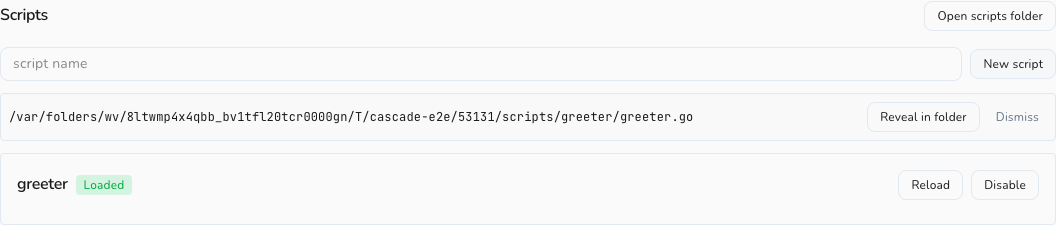
- Name — the display name from the
// cascade:namemanifest header, or the folder name if none is declared. - Status badge — one of Loaded, Disabled, Runaway, or Error. See Lifecycle & limits for what each status means.
- Description — the free-text summary from
// cascade:description, if any. - Permission chips — any permissions listed in
// cascade:permissions, displayed as small labels next to the description. (In v1 these are informational only. See Lifecycle & limits.) - Inline error — if the script's status is Error, the error message appears directly in the row so you can diagnose it without going anywhere else.
Per-row actions
Every row in the Scripts panel has two buttons:
- Enable / Disable — toggles the script on or off. Disabling a script stops all event dispatch and cancels its timers immediately. Enabling it runs
Setupagain and resumes dispatch, exactly as a fresh load. - Reload — forces an immediate reload of the script from disk, re-running
Setupand re-registering timers. Useful if you want to trigger a reload manually rather than waiting for a file-save to do it automatically.
Both buttons are disabled while an action is in progress to prevent double-submits.
Header actions
At the top of the Scripts panel there are two ways to manage scripts at the folder level:
New script
Type a name into the name field (for example, greeter) and click New script (or press Enter). Cascade:
- Creates a folder with that name inside your scripts directory.
- Scaffolds a starter
.gofile with apackage maindeclaration and a commented-outOnTexthandler. - Shows the full path to the new file inline in the panel with a Reveal in folder button so you can find it immediately.
Click Reveal in folder to open your system file manager at the scripts directory. Once you have found the file, open it in your editor and start writing.
Open scripts folder
Opens your system file manager at the scripts directory (~/.cascade-chat/scripts/ by default) without creating anything. Use this any time you want to browse, rename, or delete script folders directly.
Live status
The Scripts panel subscribes to script lifecycle events in real time. You do not need to refresh it. The moment a script's status changes, the panel updates the relevant row, whether the change came from saving a file, clicking a button, or the watchdog auto-disabling a misbehaving script.
So you can keep the Scripts panel open in the background while you edit a script in your editor. Every save that triggers a hot-reload, and every watchdog action, appears in the panel without any manual intervention.
Editing scripts
There is no in-app editor for scripts. This is intentional: your scripts folder is a real Go module that your editor and gopls can navigate and type-check just like any other Go code. Open the folder in VS Code, Neovim, GoLand, or any editor you prefer.
To edit a script:
- Open the scripts folder (via Open scripts folder in the panel, or navigate to
~/.cascade-chat/scripts/directly). - Open the script's
.gofile in your editor. - Make your changes and save.
Cascade detects the file change and hot-reloads the script automatically. The panel shows the updated status within a second or two.
If the script fails to load after a save, for example because of a typo or a forbidden import, the row's status badge switches to Error and the error message appears inline. Fix the issue and save again, and Cascade reloads once more.
For a step-by-step walkthrough of writing your first script, see Quickstart. For a full guide to handlers, the manifest header, and the sandbox rules, see Writing scripts.